Category: Labs (Page 2 of 2)

Lab 3: Web Accessibility

Web accessibility guidelines help us to ensure that our content meets at least a minimum threshold for accessibility. While it’s a long way off from universal design (designing to make sure our projects are maximally accessible for a maximal audience), it’s an important first step.

There are a variety of tools for evaluating accessibility. Tools like Funkify allow you to simulate various disabilities to get a sense of how design impacts usability. That’s useful to a point, although it’s always better (and necessary!) to talk to actual people whose lived experiences are a much better guide.

Today, we’ll use WAVE, the web accessibility evaluation tool.

  1. Choose a page on the SIUE website to evaluate, and run it through the checker at https://wave.webaim.org/.
  2. In a blog post (with the tag “Accessibility”), answer the following questions. Bullet points are fine!
    • What accessibility issues crop up for the page you chose?
    • Who is most likely to need the content on the page?
    • How might the accessibility issues impede people’s access to the content? Who might be most impacted?
    • Name one or two ways that the accessibility of the site could be improved – the smaller and easier, the better!
Lab 2: Active Reading with Zotero

One of the most effective ways to read and engage with a text is to annotate it as you go. This is particularly true of dense texts! (I’ve tried to avoid those in the syllabus, but sometimes you’ll come across things that are unfamiliar or complex.) Annotations can be anything that stands out to you — underlining a phrase that makes a key point, definitions of unfamiliar words, questions or comments in the margins, or whatever signs and symbols help you make connections throughout the text.

You might have your own strategy for annotating your readings, and throughout the semester, I encourage you to use whatever tools and methods are most effective for you. Today, however, we’re going to try out Zotero. Zotero is a free and open-source tool for reference management, note-taking, and annotation, which you can use on your own or collaboratively. (If you don’t already have a system for taking notes while you read, I recommend trying Zotero out for a few weeks!)

  1. Create a Zotero account. Visit www.zotero.org and click “Log In,” then “Register for a free account” to create your username.
  2. Join the class group. Go to https://www.zotero.org/groups/6392594/hum230sp26 and click the red “Join” button.
  3. Annotate the syllabus. Find the class syllabus in our library. You’ve already read through it once, but go ahead and skim through it again. Is there anything that catches your eye? Leave an annotation on the document. Maybe it’s a tool or topic you’re interested in, or a question you have about a class policy, or even a typo you notice.
  4. Add some metadata. As a group at your table, choose an item in the class library that doesn’t have complete metadata (that is, the information you’d use to cite it). Gather and enter as complete information as you can. You might need to correct what’s there as well!

Lab 2: Writing for the Web

Crafting a Digital Identity

  1. Make a list of the social media platforms you’re active on.
  2. Who are you speaking to (or listening to) on each one? What community are you participating in?
  3. What do you share about yourself on each platform? What do you keep private?
  4. Think about this class as a digital community of colleagues. What information do you want us to know about you?

Homework: Write and post a blog post introducing yourself. Include an image – that might be of yourself, of your pet, of a place you love, etc.

Adding A Blog Post to WordPress

  • Accessing the Dashboard: Our website is https://iris.siue.edu/hum230sp26. You can access the dashboard by going to https://iris.siue.edu/hum230sp26/wp-admin and logging in with your SIUE username and password.
    • Once you’re logged in, you’ll also see a banner at the top of the website that includes a link to the dashboard.
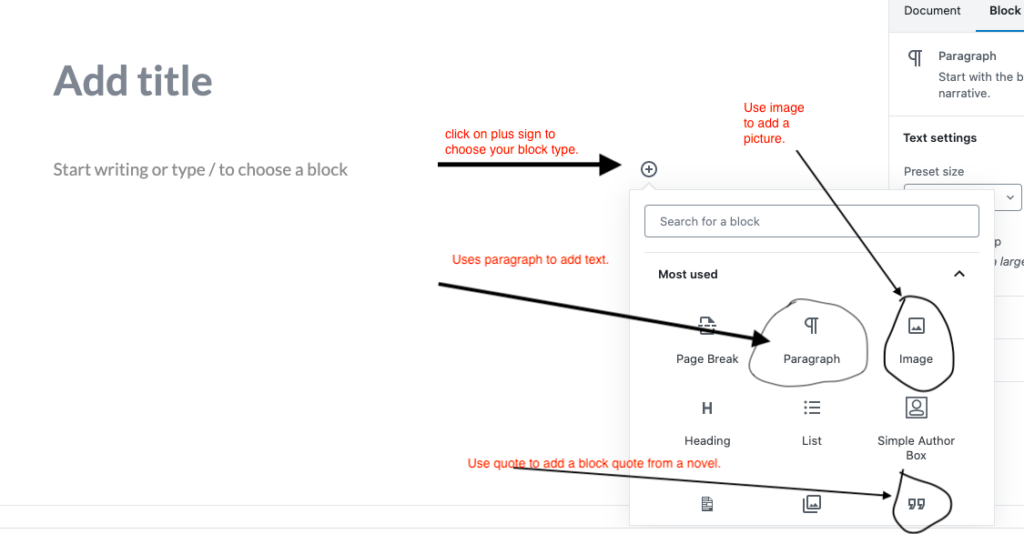
  • Adding a Post: When you’ve made it to the dashboard, click on “Add New” Under the “Posts” heading to the left of your screen. You’ll be taken to a screen that looks like a word processor. You can type right into the post box, or you cut and paste directly from your own word processor into the blog screen.
  • Adding a Title: Type a title in the “Add Title” Box that is informative and describes your topic.
  • Adding a Block with Text or Media: Click on the plus sign to choose what kind of content block you are adding. Common blocks include “paragraph” to add text, “image” to add a picture, or “quotation” to add a block quote. There are several other block types you can add, but these three are the ones you’ll likely need most often.
  • Adding your post’s text: Add a paragraph block and then type your text. Note that a toolbar will pop up at the top of the screen giving you options for formatting the text.
  • Adding Image: Add an “Image” block. The site will give you the option to add an image from a URL, upload one from your computer, or choose one that has already been added to the media library.
  • Block Quoting: If you have a line that is four lines or longer you should turn it into an indented block quote. To do so, after you introduce your quote, add a “quote” block.
  • Saving your Work: Click on “Save Draft” and then “Preview” in the widget in the upper-right hand corner to check your work (In “Improved” mode “save” and “preview” are at the left of the editor). Take your time, add to the post, and proofread.
  • Publishing: Choose “Publish” from the widget at the right for the post to appear on your blog (or at the left of the editor in the “improved” version).

Lab 1: Hometown Map with Leaflet Storymaps

To get to know one another, we’ll kick things off by building a collaborative storymap that maps out our hometowns. The goal is to understand each other’s and our collective perspectives.

This storymap runs off of a Google spreadsheet. In class, each person will fill out a single row in the spreadsheet, adding an image, description, and coordinates for their hometown. In case you need to return to it, the presentation below has step by step instructions for filling out the spreadsheet.

Newer posts »