Page 17 of 17

Dr. Smith’s Introduction (Lab 1)

Hello! I’m Dr. Meg Smith. I’m a digital humanist and a historian of medieval and early modern Ireland. As a digital humanist, I’m interested in questions related to critical data studies — where our data comes from and where it goes. In my historical research, I study how medieval Irish people contested English rule through the legal system, the landscape, and their interactions with other people. (Those two research agendas are connected: In the bigger picture, I look at how people challenge the categories that are imposed on them, which makes encoding them in data sets very complicated!)

At SIUE, I direct the IRIS Center, which is our digital humanities research center. IRIS is a great resource for this class — we offer office hours and project consultations, workshops and events, and equipment you can use or check out. The IRIS Center is in Peck 2226, and you can email iriscenter@siue.edu for a tour or to access any of our resources.

In my spare time, I do a lot of making. Sometimes that’s digital making — building a website or a data visualization. Sometimes it’s physical making — making a quilt, a dress, or an embroidery. And sometimes, it’s both! I’m currently working on a data quilt that visualizes how people cross the Mississippi. I also do a lot of cycling, hiking, and walking my dog (Ada Lovelace, named for the woman who arguably invented the computer).
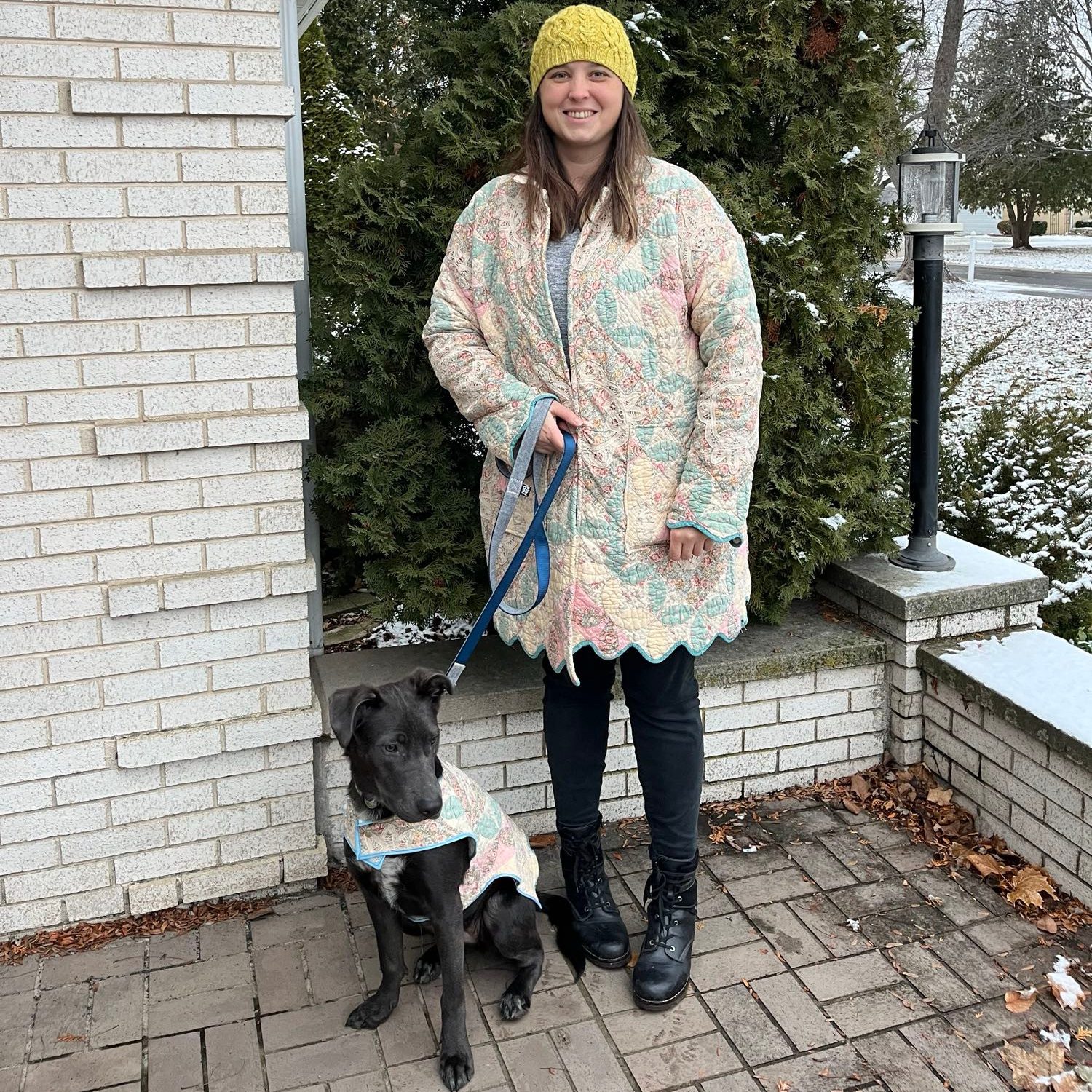
Me and Ada, wearing the matching quilt coats I made for us last Christmas

Lab 2: Writing for the Web

Crafting a Digital Identity

  1. Make a list of the social media platforms you’re active on.
  2. Who are you speaking to (or listening to) on each one? What community are you participating in?
  3. What do you share about yourself on each platform? What do you keep private?
  4. Think about this class as a digital community of colleagues. What information do you want us to know about you?

Homework: Write and post a blog post introducing yourself. Include an image – that might be of yourself, of your pet, of a place you love, etc.

Adding A Blog Post to WordPress

  • Accessing the Dashboard: Our website is https://iris.siue.edu/hum230sp26. You can access the dashboard by going to https://iris.siue.edu/hum230sp26/wp-admin and logging in with your SIUE username and password.
    • Once you’re logged in, you’ll also see a banner at the top of the website that includes a link to the dashboard.
  • Adding a Post: When you’ve made it to the dashboard, click on “Add New” Under the “Posts” heading to the left of your screen. You’ll be taken to a screen that looks like a word processor. You can type right into the post box, or you cut and paste directly from your own word processor into the blog screen.
  • Adding a Title: Type a title in the “Add Title” Box that is informative and describes your topic.
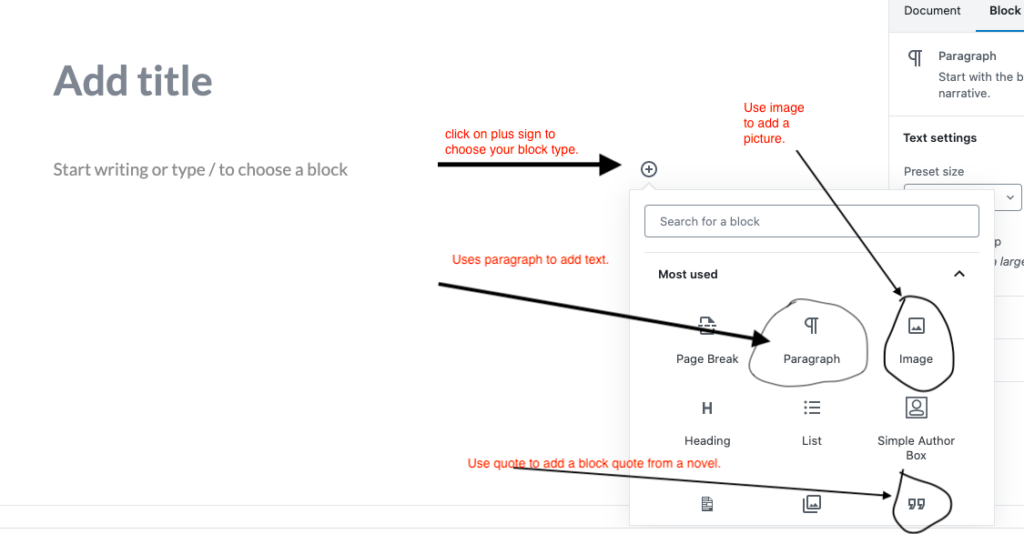
  • Adding a Block with Text or Media: Click on the plus sign to choose what kind of content block you are adding. Common blocks include “paragraph” to add text, “image” to add a picture, or “quotation” to add a block quote. There are several other block types you can add, but these three are the ones you’ll likely need most often.
  • Adding your post’s text: Add a paragraph block and then type your text. Note that a toolbar will pop up at the top of the screen giving you options for formatting the text.
  • Adding Image: Add an “Image” block. The site will give you the option to add an image from a URL, upload one from your computer, or choose one that has already been added to the media library.
  • Block Quoting: If you have a line that is four lines or longer you should turn it into an indented block quote. To do so, after you introduce your quote, add a “quote” block.
  • Saving your Work: Click on “Save Draft” and then “Preview” in the widget in the upper-right hand corner to check your work (In “Improved” mode “save” and “preview” are at the left of the editor). Take your time, add to the post, and proofread.
  • Publishing: Choose “Publish” from the widget at the right for the post to appear on your blog (or at the left of the editor in the “improved” version).

Lab 1: Hometown Map with Leaflet Storymaps

To get to know one another, we’ll kick things off by building a collaborative storymap that maps out our hometowns. The goal is to understand each other’s and our collective perspectives.

This storymap runs off of a Google spreadsheet. In class, each person will fill out a single row in the spreadsheet, adding an image, description, and coordinates for their hometown. In case you need to return to it, the presentation below has step by step instructions for filling out the spreadsheet.

Newer posts »